A friend of mine recently asked how they could create a WordPress forum, and the best choice by far is bbPress. It’s adaptable, easy to use, and simple to install. There is a lot you can do in regards to using bbPress. This post will walk you through how to set up a Forum using bbPress, with some bonus tips thrown in.
How Do I Know When To Start A Forum?
Just because other blogs have a forum, doesn’t mean yours needs one. Forums are great to help subscribers and potential customers get the information they are looking for, but not all blogs require this aid.
Before committing the time and energy it takes to run a forum, ask yourself these questions:
- Does your blog receive a lot of traffic each day?
- Are you selling some sort of product or a service?
- Have you received a lot of emails from visitors asking questions about your blog and content?
- Do you think the type of forum you want to create will benefit your subscribers and first-time visitors in a positive way?
If you answered ‘yes’ to these questions, then a forum might be the way to go! Keep in mind, when you start a forum, you are now responsible for running and promoting that forum as well as your blog. Getting new registrations to the forum and not subscribers to your blog is still a good thing, but you can create sticky threads in your forum categories mentioning important blog posts to drive traffic to your blog. Do get creative in your marketing efforts but remember your blog and forum should promote one another in some fashion.
You make money off your blog, right? When you drive traffic to your forum, you could always sell sponsored sticky threads to earn additional revenue. Edit the theme files and just slap up a Google AdSense block. Let’s skip to this blog forum plugin and how easy it is to get it installed and set up. For multiple ways on how to earn money online, do look through our Blogging Revenue category. There are endless ways to earn money from your forum and the blog. Let me know if you have any questions with this. Let’s get back to BBpress now.
Is Your Web Hosting Package Enough?
It’s important to remember that forums can grow rapidly. Active users, curious visitors, and bots can eat up your server resources, causing your forum to go down or run slower than I can run. This can lead to users never returning to your forum or worse, your prized blog. So, it is crucial to pick a Web host that will be able to handle the high traffic load of a forum.
We have listed the top Web Hosts for blogs previously, but if you are looking to start a forum, there is one I would recommend.
Cloudways is actually the current web host of WPOutcast. We switched over in November of 2015, and we love the service. The pricing is reasonable and the features are top-notch, making it an excellent choice for a blog and forum combo. Speed and security are always a concern with online content but Cloudways offers options to help with these. Still, it’s important your look over our list of security precautions. My Cloudways is set up to back up every 24 hours, giving me peace of mind and keeping me from installing a backup plugin.
I would also suggest using the Akismet Plugin. BBPress has an option to integrate this plugin and help blog spam in BBPress.
The pricing table: (Explore the homepage and read about all the features)
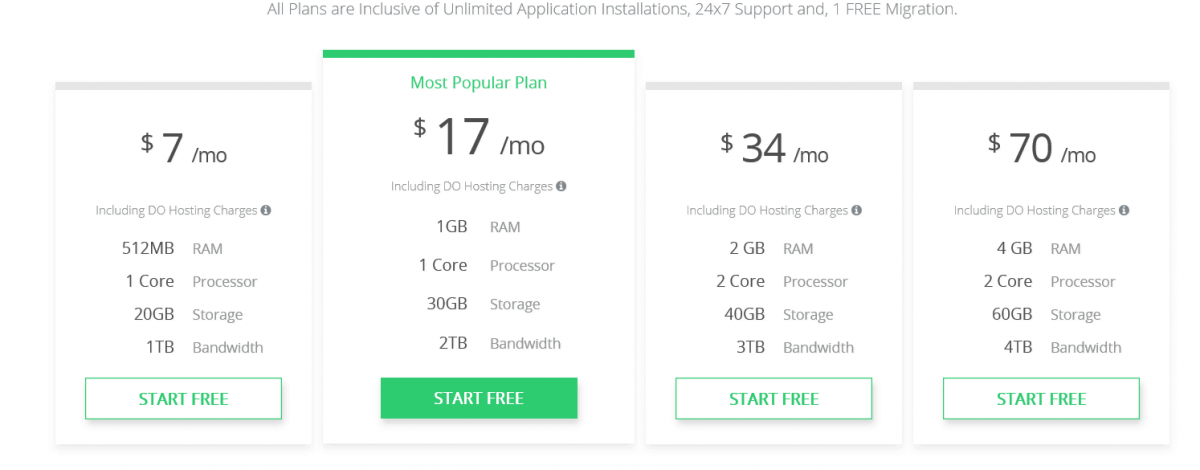
*Prices subject to change at anytime by the web host*
How To Install bbPress
Navigate to your “Add Plugins” page and add the following text into the search bar to find and install the plugin.

Click the “install” button and then “activate” the plugin to complete the installation. If you don’t have any errors, you should be on the following success page.

Forum Settings
Before we do anything else, make sure to edit the forum settings the way you want them. Typically you should never have to edit them again. In your admin dashboard’s “settings” page you will find the forum settings button like so.

I am not going to post images of all the settings I chose because each forum admin needs to pick which ones work best for their needs.
In the settings page, you choose the forum root link which is the exact URL where your forum can be found. You can then use this URL on your blog or in other locations to link to your forum. I left this as default for the sake of this tutorial.
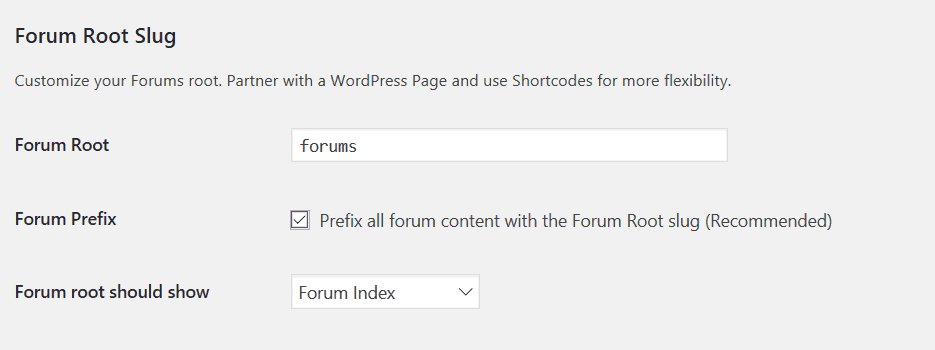
If I changed the “forums” to WPOutcast then the URL would be: www.wpoutcast.com/WPOutcast
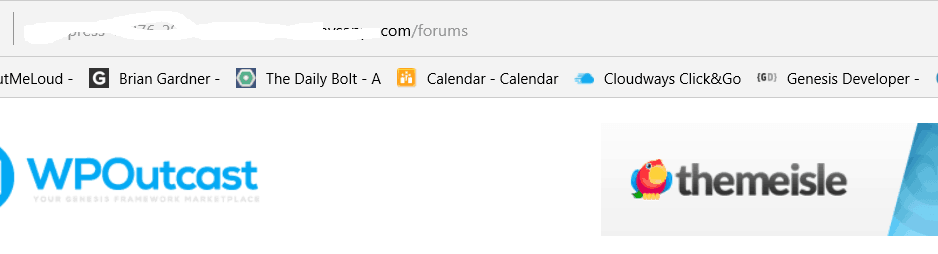
Example of the URL and yes, no categories created yet.
Creating Categories
A forum is not actually a forum until you create the categories. Let’s work on this now. This plugin is so simple to use and it takes a matter of minutes to go from activating to promoting the URL. If you have a lot of categories, that might take a little time. At the end of this post, I’ll share some things to add to the forum.
In the left hand side of your admin dashboard click on the “forum” link. From here we are going to create some categories.
I wish they named this “categories” because that is what this section is used for. Confused me for a few seconds. Create as many categories as you want to or do them as they are needed. You might not want 10 empty categories when your forum first goes live. This is just a suggestions and I am not saying this is the golden rule.
As the admin, you can actually start topics from your admin dashboard with the setting in the image below.

When there are threads created by visitors, this section is perfect for you to work from. You can easily lock threads and do other things to moderate the forum. Here is an example of myself, the admin, creating a thread. There are different options to the right, depending on what you want to do with this thread.

Here is an example of the post I just published.

All your moderating will be done in your admin dashboard, so always keep the admin dashboard open in a new browser tab while you are replying to threads or reading them. That’s it! The plugin is set up.
Enhance bbPress
There are plugins to use to do certain things with the forum. The default version is a little too boring for me. Search through some plugins and add what you think will keep visitors and readers engaged.

Visit the https://bbpress.org/plugins/
Best of luck with your new forum.
If this blog post was helpful, please consider sharing it online with your followers.

Hi there Derek,
You made it very clear and simple about adding a community alongside with our blog. I hope it will be useful for me a day.
Regards,
Clay Smith.
Thank You Clay. :)
BBpress rocks, if you have good numbers of members and you know how to engage then, BBpress is very useful to increase your viewership. Thanks
The StudioPress community forum is BBPress but they modified the heck out of the forum to suite there needs. This is a good forum software and not complicated to run as an admin. I have been with vbulletin before as a forum owner and its way to many options in the admin panel. BBpress is simple to use and user friendly. Great system for a dedicated support forum.