One of the many plugins created just for the Genesis Framework is the Genesis Simple Edits plugin. This plugin is great for the bloggers who are not familiar with theme coding or feel comfortable editing their theme. So you have some good things that this plugin can do for you and the combinations you can come up with is unlimited.

Before you jump ahead and download the plugin, let’s just take a look at some of the options that it provides if you current Genesis Framework theme does not have built in options to modify the things that this plugin can do. Since I changed my theme to the Elacsad theme that I modified a bit, I had to pull an old image from this blog of when I used the Author Pro theme from the official StudioPress Sites marketplace to try to show you want get’s changed.
Here is what area’s that this plugin can change:
- Entry Meta (above content) – In the image below, everything except for the avatar image (shown at the top of this post) on that line this plugin can change. You can reorder theme, remove certain items from the meta or add more stuff in their. I just created an example image but not saving this as it will mess up my current theme modifications.

Did you noticed this part of the shortcode “Last Updated on “? Well how I added that because when I modified a blog post, the date changed and well I wrote “Last Updated on” text to make it seem more professional. If you want to add the last modified date to all your blog posts so visitors know it’s been updated, visit the Codes To Customize Your Theme and navigate to the “Last Updated” section. If you don’t want to do this then the “” shortcode will not work at all nor be a selection.
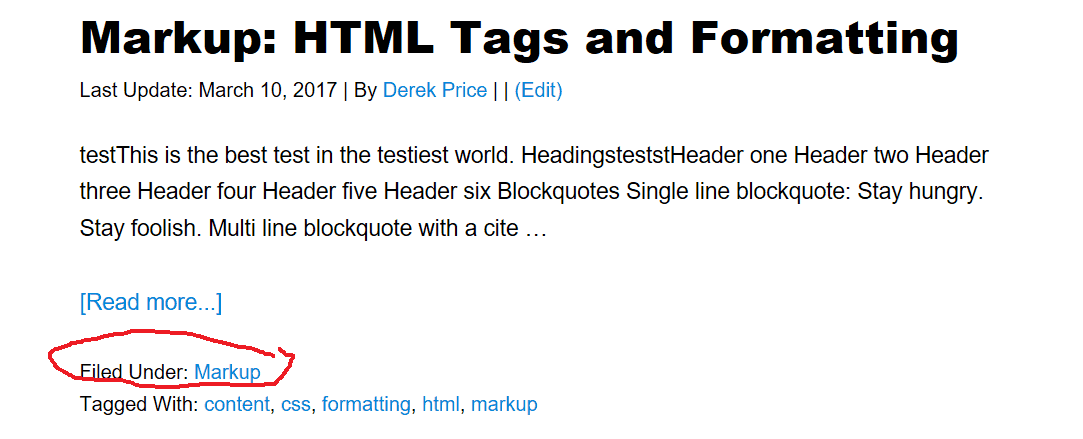
- Entry Meta (below content) – This will be the information that appears below your blog post on your homepage/blog post itself. In the image below I only had the category showing under their.
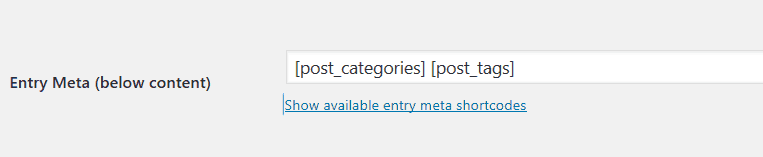
In the below image, noticed the word “Filed Under” below the content? That is what is showing if you use the shortcode in the image above. Like I said, you can add anything you want to in both these sections mentioned already.
There is a boat load of shortcodes to use for these 2 sections to make any type of format. See below for a list of all of theme.

This plugin is perfect for themes that have been bought from the official StudioPress marketplace. This is my recommendation to follow this advice. If you have a 3rd party theme, you could try out this plugin to make these changes but I think your theme may need some extra tweaks to it. Last feature I used like a boss with this plugin.
- Customize the category “filed under” text with this category customization code.
Footer Credits
You are allowed to removed the copyright information and links from all StudioPress themes that you have purchased from the official StudioPress Sites website. Since you paid for it and now are not obligated to leave them in their. So I used this section to create my own footer text.

Create your own like I did and I also added 2 clickable links in the footer to pages not ever visited but important to have regardless.

Here is how you do all this:

Final Thoughts
Any of the themes that you purchase from StudioPress.com have their domain URL in the footer section with a link back to their homepage. You are allowed to remove that URL and all footer credits but most of the blog owners just insert their themes StudioPress Affiliate link in their. They will still give credit where the theme was purchased from but now they are going to be compensated if a visitor buys a theme from their affiliate link in the footer. It’s a win-win situation for both owners. An easy commission for doing nothing. Do make sure that you are cloaking your affiliate links for tracking purposes.
If you buy a 3rd party Genesis Framework theme that is not being sold on the official StudioPress.com website, you will have to read that author’s documentation or their FAQ on their official site to see if you are allowed to remove/modify the footer credit links. It’s better to ask then to take a guess and be wrong.
That’s basically what this plugin will do for you. It will allow you to modify certain parts of the blog post meta data. Go download the Genesis Simple Edits now and give it a try. If you just don’t want it or it doesn’t work well with your theme’s previous modifications, uninstall the plugin and your themes post meta information will go back to normal like it was before you installed this plugin.
If you like this tutorial, please consider sharing it with your friends.

Leave a Reply