
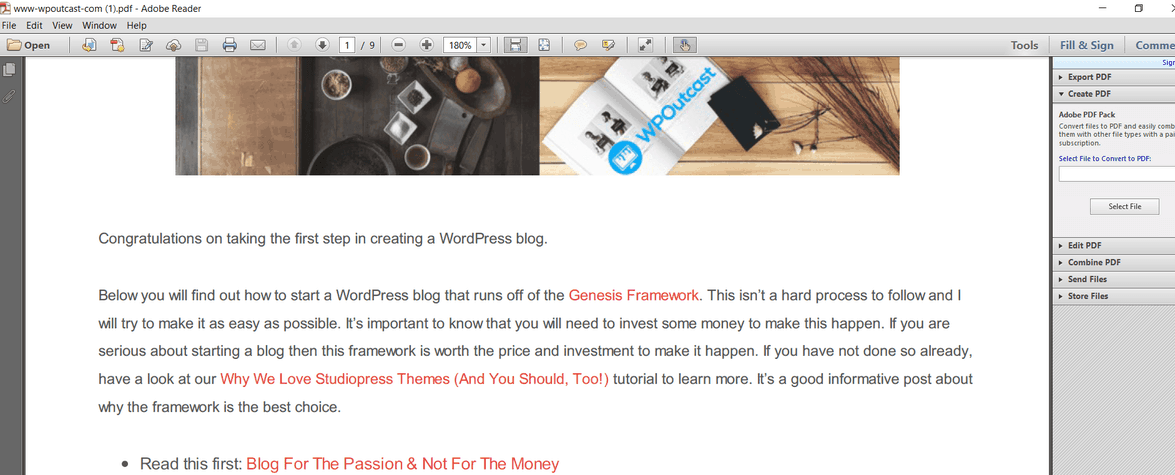
Have you ever wanted to convert a blog post or a web page into a PDF and sell it? Let’s take our Create A Blog page for an example; this page is a work-in-progress page as I continue to add to it over time however, if I wanted to give this page away to get people to join my autoresponder or even sell it, I can convert this page easily to a PDF using the Web2PDF online tool.
Example PDF:
Reason’s for Converting to PDF
- A certain blog post or a page constantly receives a lot of traffic and you decide that you want to sell it as a PDF.
- Use a PDF as a giveaway product to help collect emails for your autoresponder
- Make money by providing a post-to-PDF service (you’d have to get a paid membership, more on that soon)
Let’s discuss how to convert a web page to a PDF. I wish I could have found this method before I hired a publisher to convert my word document into an ebook. Currently my book is listed for sale on Amazon and it was not cheap to get this service done. Here is a free way to convert a page to a PDF.
Convert Web Page to PDF Using Web2PDF
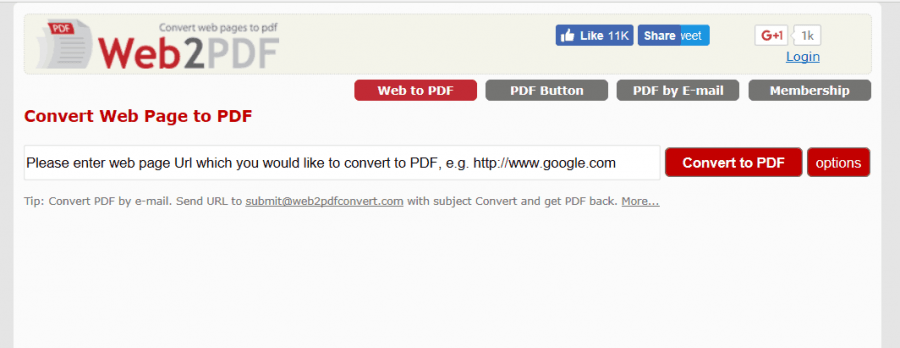
It’s absolutely free to convert a page to a PDF format but there are drawbacks to using the free version. On the Web2PDF homepage, you just have to copy the URL into the field box listed in the above image then convert it like so:

Before you hit the convert button let me show you the drawback of the free option. Below is the actual PDF I just created.

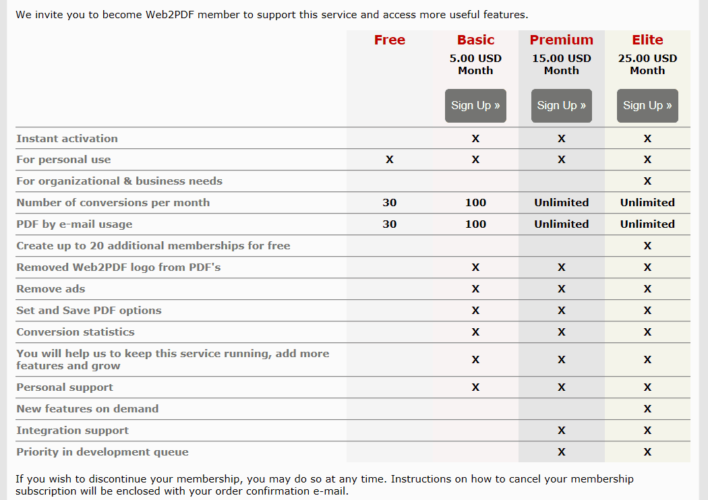
Notice my menu bar, search bar, and that advertisement on the converted page? Also, my footer widgets appear at the end of this document. Since I am using a free version of Adobe, I am unable to edit the PDF to remove certain sections to make the PDF look like a real eBook. That’s one issue with the free version. Now if you click on the “options” button, you’ll see what features you get with a paid Web2PDF account.

The free features are shown below:

As you can tell, if you spend a little, you get more options to customize your new PDF.
Also in the free version, I cannot remove the “Web2PDF” logo from the converted PDF. I recommend getting the paid version for a more professional looking document. With the paid version you should use a custom logo for your eBook and I recommend getting one from Logo Nerds. I can vouch for their awesome work.
Best Way To Use Web2PDF For Free
Create a landing page on your blog and move the intended ebook content to the landing page. Publish the Landing Page temporarily to create your PDF. The reason for using a landing page is because it’s a full page layout with no blog logo, no menu bar, or a footer. It’s the only way to create a PDF that looks like a legit ebook. This the only way I could bypass most of the paid Web2PDF options except for removing their logo images on all pages. You would have to join their membership to do that.
Here is a snapshot of their logo image appearing in a PDF I created:
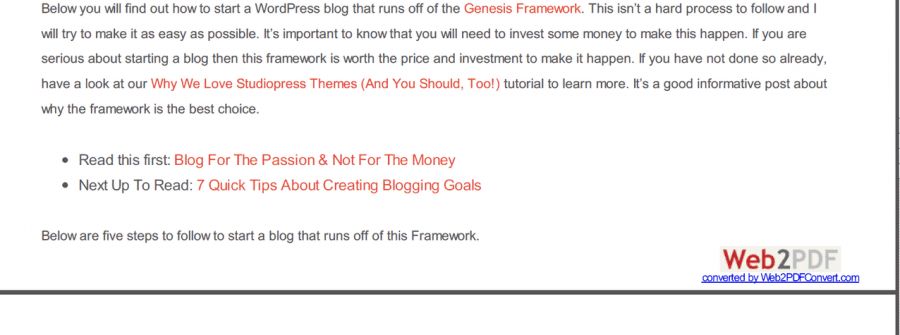
Removing the logo will ensure no one knows you created the PDF ebook with little effort. What’s your thoughts on this online tool?
Have you found a similar way to go about this? Please share your thoughts in the comment section.
If this blog post was helpful, don’t forget to share it online with your followers.

Thank you for the great post really it help me.
Thank you sir for this nice tricks
Nice Blog Thanks For Providing such a Great information
Hi Derek,
very nice article, keep up the good work.