
Do you design themes to give away for free or to sell? Do you manually create the demo content along with heading tags and all sorts of stuff? Want an easier way to do this? That way, all you have to do is tweak the content to create a perfectly working demo? This can be done by importing a file. In the event that you are a StudioPress client and want an easier way to edit your theme, consider giving Genesis Design Palette Pro a shot. It’s a fantastic plugin backed by StudioPress on their official website!
This demo import method is actually the best way to check and see if your Non-Live theme is coded correctly to display all the elements one might use in creating content using your theme. For example, you think you coded a special font for quotes but after importing this text demo version, you find out it does not show. This means you need to check your theme’s coding and make any changes before you go live with the theme.
This is basically a free review of your unpublished theme to make sure you didn’t miss any of the small details.
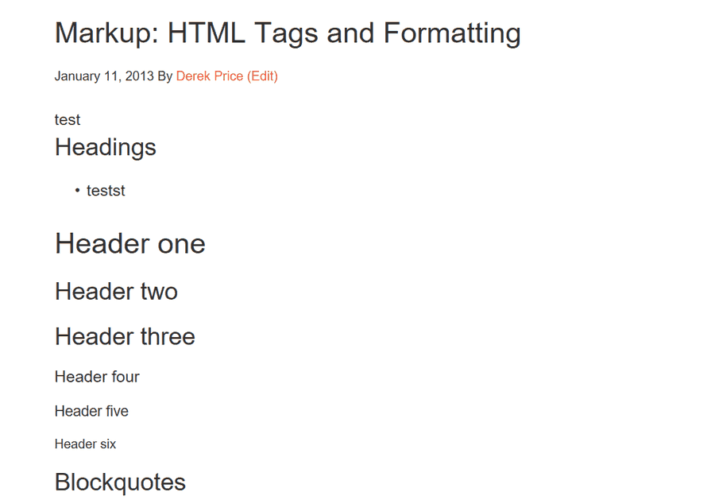
First, we will go over how to do the import and then I’ll show you some of the features that come with this plugin. Plus, you can leave the content up when you go live with your theme’s demo.
Demo Import Features
- Categories
- child categories
- menu items
- nested comments
- pages
- sub-pages
- images of different sizes
- image alignment lists
- blockquotes
- links
- code
- other HTML tags
- more goodies not mentioned
How To Import Demo File
You will need to right-click the XML file for theme unit test data link then save it to your desktop. Next thing to do is navigate to your “tools –> Import” link in your admin dashboard to find the following screen.
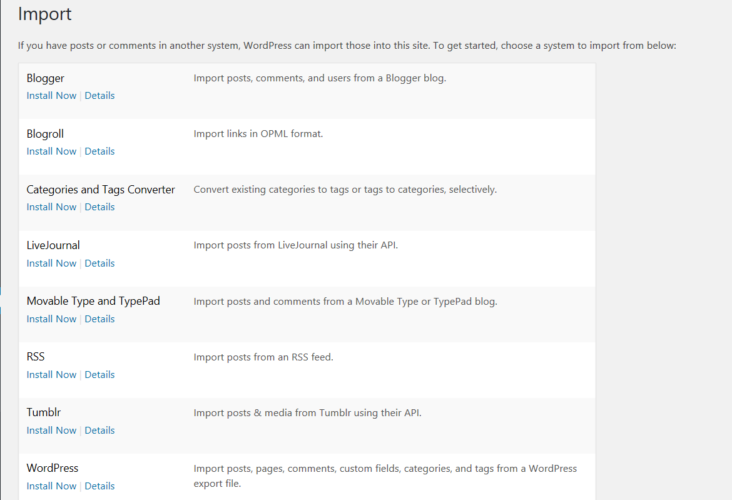
If you have never imported any files before, click on “install” in the WordPress menu options to reach the screen in the above screenshot. Now go ahead and click on “import” and upload the .txt file you saved to your desktop earlier.
You should be on the settings screen.
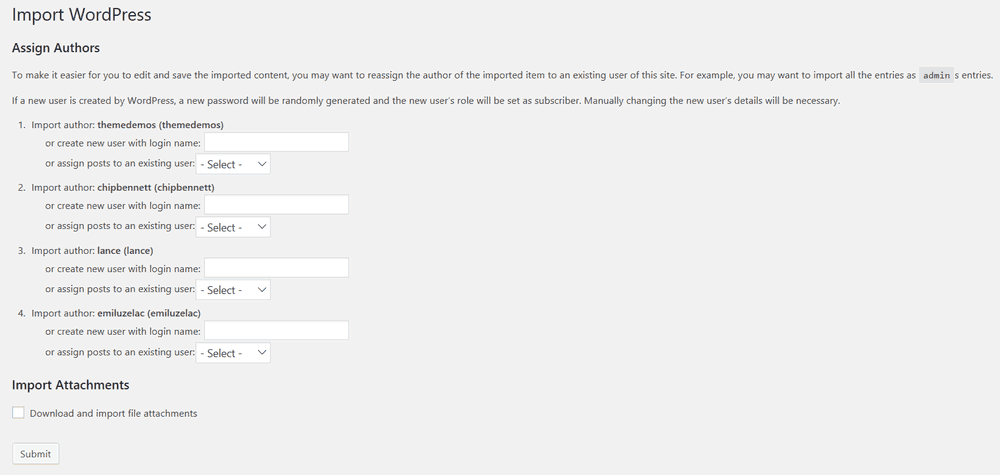
Fill in the fields as you wish. Since my test blog has 1 user and that’s myself, I am going to use the drop down menu and select my name for all the files. Tick off the ‘file attachments’ feature before you hit the submit button. The import could take up to three minutes.
Below is the finished screen. Please make note that this is the 2nd time I am running this import so everything was already created.
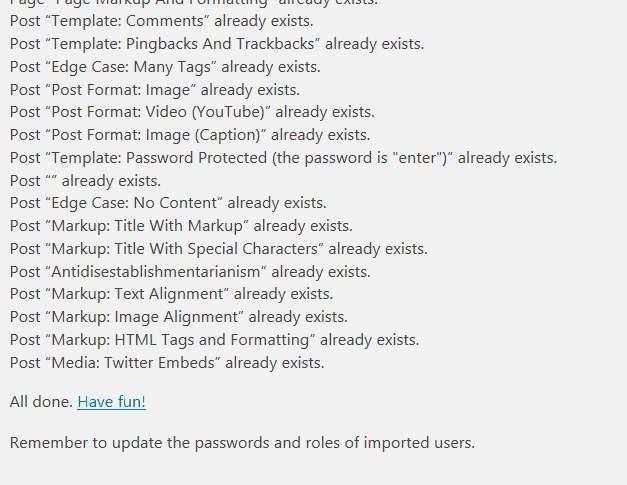
Look, all those posts and pages created automatically! Each post and page has a unique feature displayed.
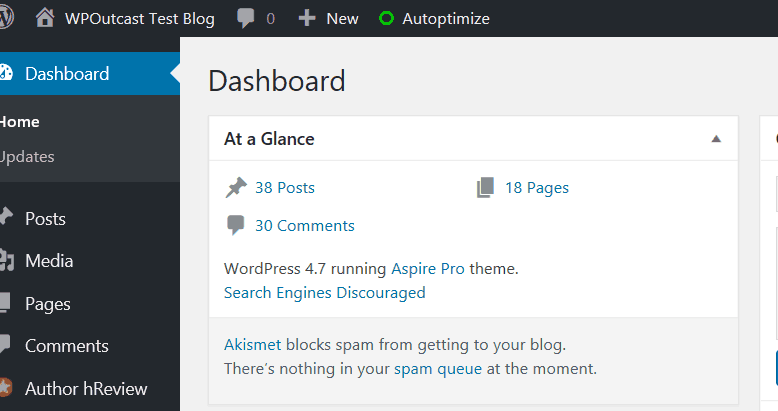
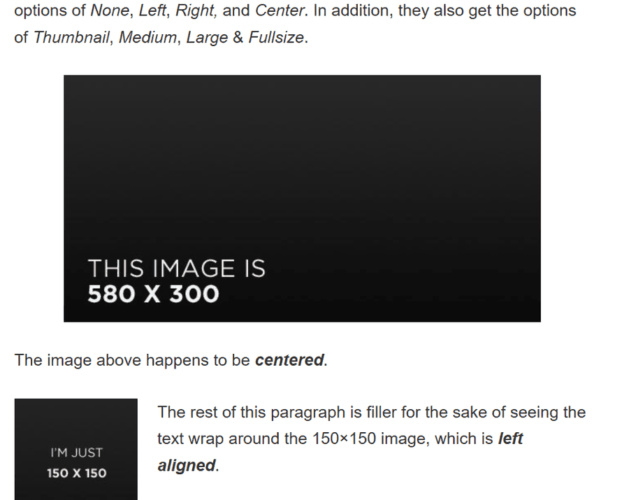
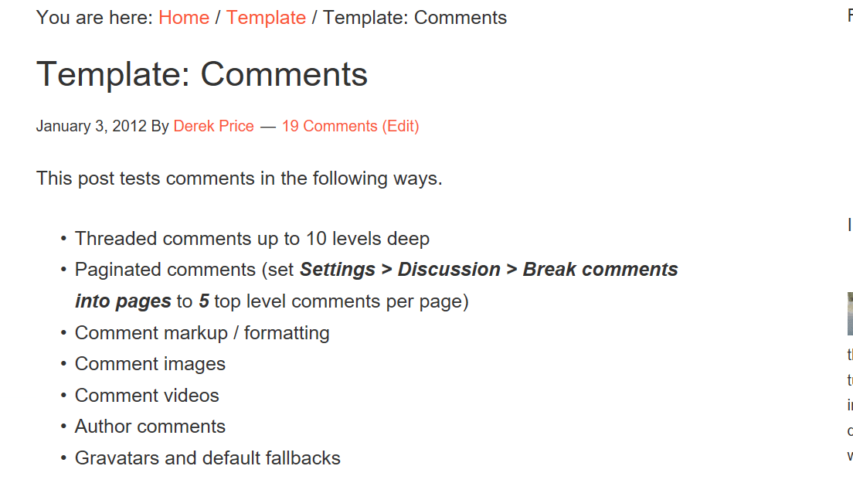
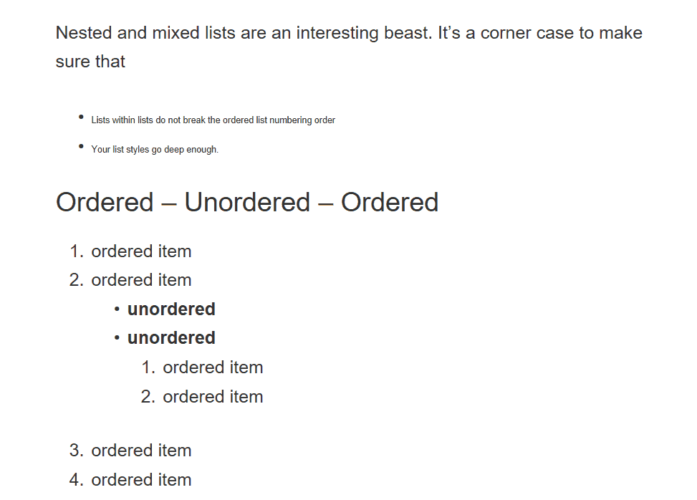
Here are some examples in which I currently have the Aspire Pro theme installed.
Examples:
Final Thoughts
This demo content is so awesome and it’s free to use. It only takes three minutes from upload to demo blog! It’s worth it to use. Unless you found a better way, this works well on my Test blog using a 3rd Party Genesis Framework theme.
Note that you do not have to install a plugin to do this. I know there are plugins out there that do this but keep in mind; the fewer plugins you have on your site, the faster and more secure it will be.
If this blog post was helpful to you, consider sharing it online with your followers.

Leave a Reply